OBS Studio - Free and Offline Streaming & Recording Software
OBS Studio is a powerful, open-source software that allows you to stream and record your screen, gameplay, or presentations offline and for free. Trusted by millions of content creators worldwide, OBS Studio combines professional-grade features with an intuitive interface, making it accessible for beginners and experts alike.
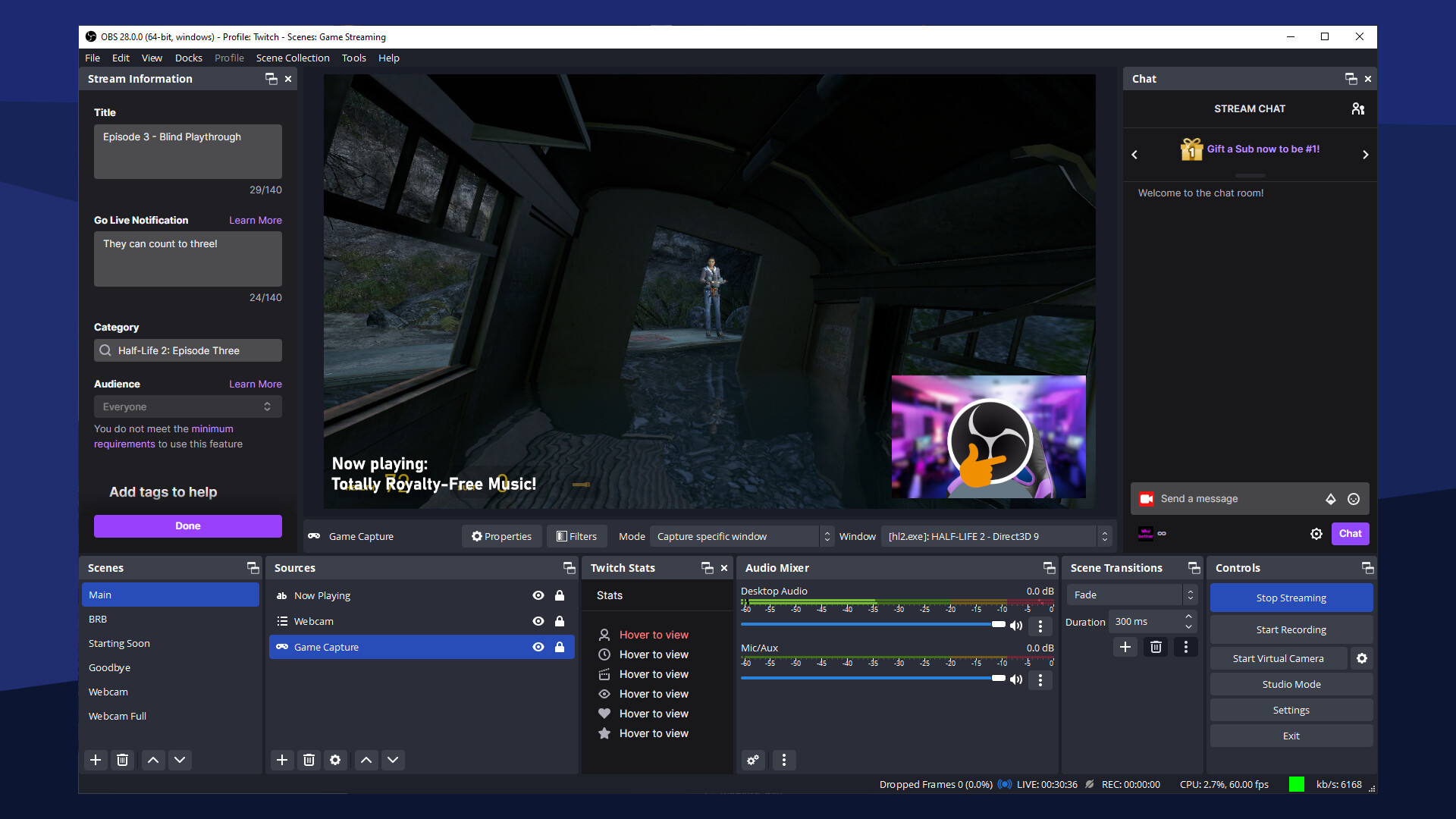
What is OBS Studio?
OBS Studio (Open Broadcaster Software) is an open-source application designed for screen recording and live streaming. Unlike other software, OBS is free, offline-capable, and fully customizable. It allows you to mix multiple video and audio sources, add overlays, and stream directly to platforms like Twitch, YouTube, or Facebook without any restrictions.
Key Features of OBS Studio
- High-performance real-time video/audio capturing and mixing.
- Unlimited scenes and sources for complex streaming setups.
- Supports multiple streaming platforms and custom RTMP servers.
- Filters for video sources such as chroma key, color correction, and noise suppression.
- Customizable transitions and scene switching for professional production quality.
- Cross-platform support: Windows, macOS, Linux.
- Fully open-source and free to use with no watermarks or time limits.
Why Use OBS Studio?
OBS Studio is the go-to choice for content creators, educators, and gamers who want a free, offline, and highly customizable streaming and recording software. Its open-source nature allows the community to continuously improve the software with plugins, extensions, and custom features. With OBS Studio, you can:
- Record high-quality gameplay or tutorials.
- Stream live events with professional overlays and transitions.
- Combine multiple cameras, microphones, and media sources seamlessly.
- Create video content for social media, presentations, or online courses.
- Maintain privacy since it works fully offline.
How to Install OBS Studio Offline
- Download the offline installer from the main site.
- Select the correct version for your operating system (Windows, macOS, Linux).
- Run the installer and follow the on-screen instructions carefully.
- Launch OBS Studio after installation.
- Set up your first scene and sources (camera, microphone, or window capture).
- Adjust video settings, such as resolution, FPS, and bitrate for optimal performance.
Tips and Best Practices
- Use high-quality webcams and microphones for clear video and audio.
- Organize multiple scenes for smoother streaming transitions.
- Experiment with filters and effects to enhance video quality.
- Test stream settings offline before going live.
- Keep OBS Studio updated for latest features and bug fixes.